
When it comes to the question of rendering, can you ever have enough appearances? I’m not sure that is really a question, because the answer, would always be, no! Simply because with all rendering it relies on the abilities of the material, appearances, and the environments to produce realistic images, & with that, you never know what you might need!
SOLIDWORKS Visualize comes with a comprehensive range of appearances, which would covers the requirements for almost every occasions. This was only added to, with the release of SOLIDWORKS 2024 Visualize, which saw the introduction of Dassault Systèmes’ Enterprise PBR Shading Model (DSPBR) appearances, further enhancing the software abilities.
If I refer back to my original question and subsequent answer, that you can never have enough appearances, then, when I saw a post showing that NVIDIA had released vMaterials 2.3 I thought it was a good time to see what they could to add, to the SOLIDWORKS Visualize rendering experience.
NVIDIA vMaterials have been around for around five year now and in their own words:
“NVIDIA vMaterials is a curated collection of MDL materials and lights representing common real-world materials used in the design and AEC workflows. Integrating the Iray or MDL SDK quickly brings a library of hundreds of ready-to-use materials to your application without writing shaders. The materials are built with a consistent scale so designers can easily switch from material to material without needing to re-adjust the scale. The layering capabilities of MDL make quick work of changing or enhancing the materials to get just the needed look. Since vMaterials are built on MDL, they can easily be saved and opened in other supporting applications.”
One of those supporting application, just so happens to be SOLIDWORKS Visualize.
The array of NVIDIA vMaterials can be download via the NVIDIA Developer site.
Downloading and installing is straight forward and once the material folder existed I simply moved it to the SOLIDWORKS Visualize Content\Appearances Folder so it would be accessible from the File Library
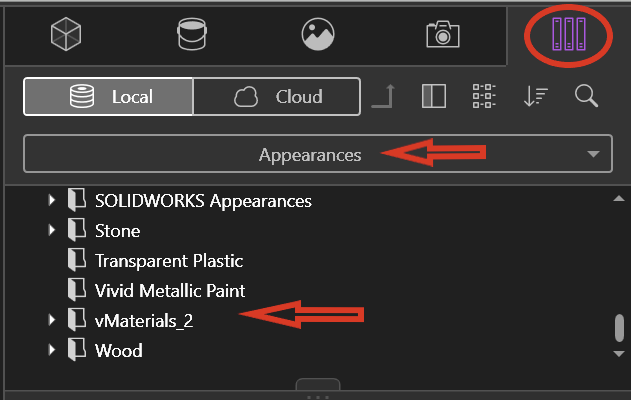
There are many similar appearances between the NVIDIA vMaterials & the Visualize DSPBR appearances, but NVIDIA does have some quite unique and very interesting materials, especially when it comes to some of their Paint appearances. I was interested to try and produce some images which normally couldn’t have be produced with the standard Visualize appearances.
Looking at the Carpaint Folder they show a number of “group titles” but no real indication of the effect of the appearance. That is until you drag and drop the appearance onto the part
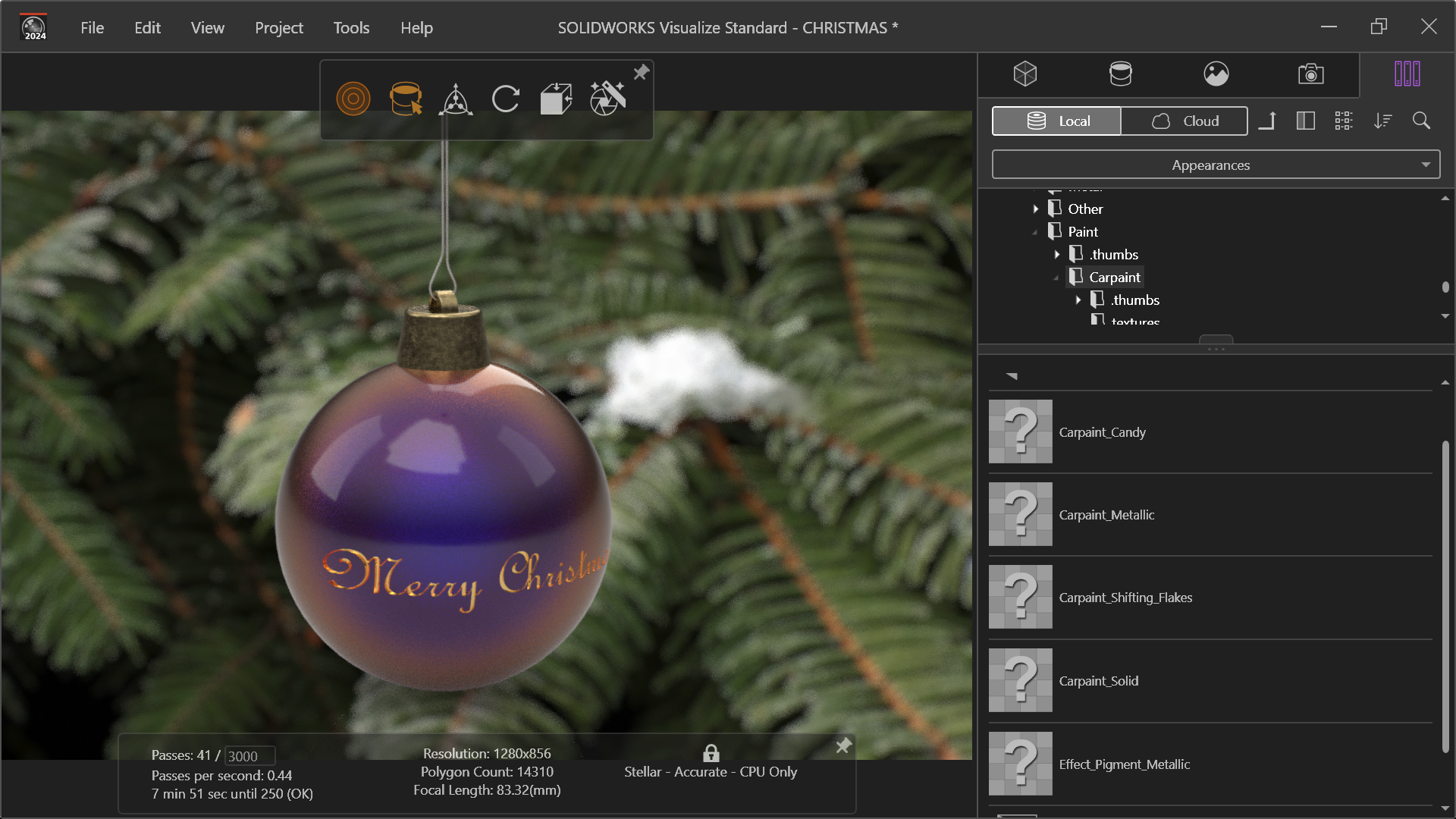
If you then switch to the Appearance tab, you then have the ability to drag & drop the material of choice onto the part. In this case using the Carpaint Shifting Flakes I choose Carpaint Chameleon in Purple Red Orange
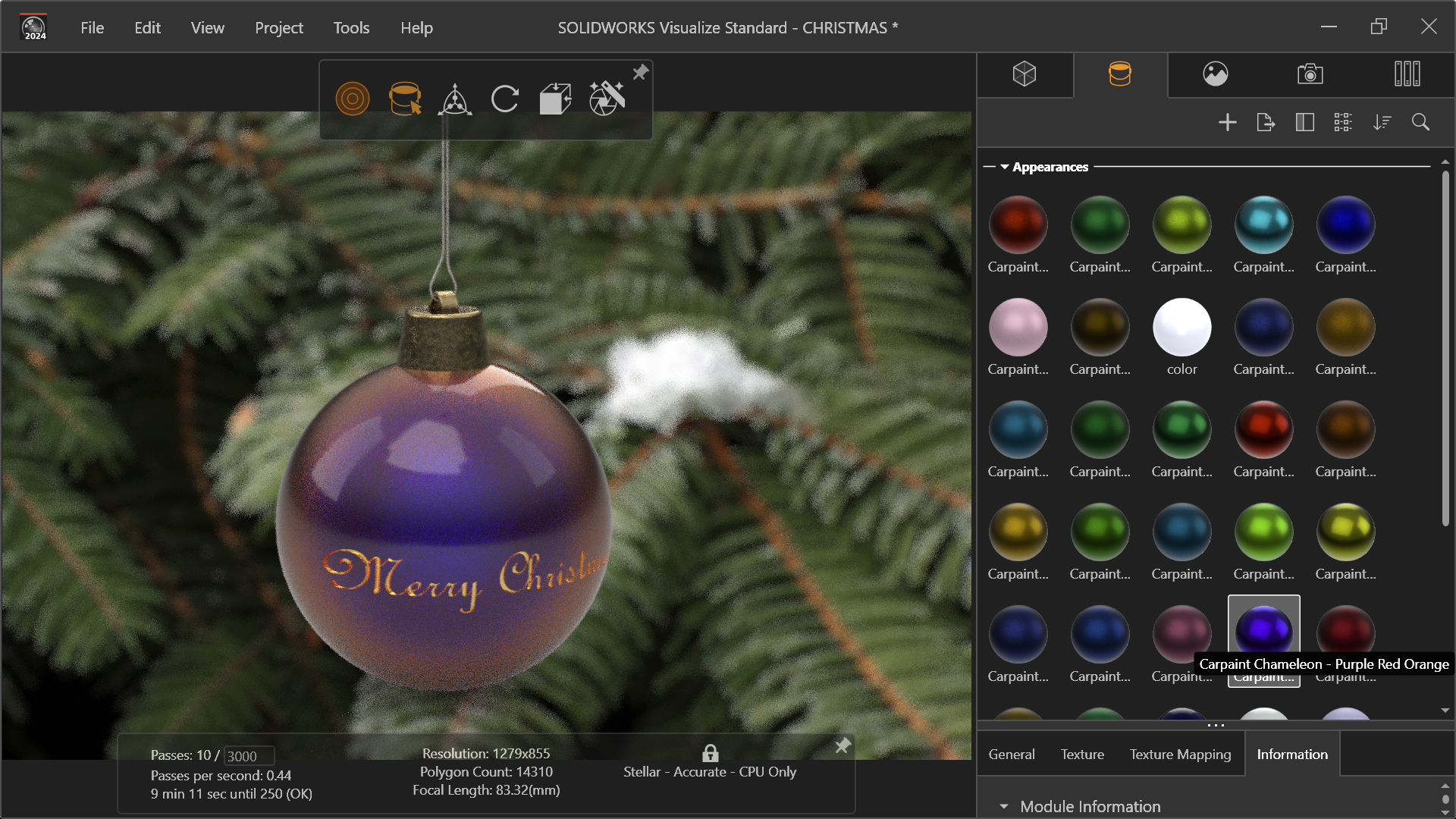
There is then an almost unlimited range of adjustments that can be made. Everything from the Base coat influence, and the choice of the five other colours, through to the flake size & spread, the clear-coat & its refraction and onto the orange peel strength. Way too many options to try but as you can see from this simple render it produces a stunning paint appearance, from the depth of the clear-coat , through to the fade of the blending colours and the understated flake.

It would appear rather pointless to have these interesting Carpaints without applying them to a vehicle. The 1969 Camaro, which comes with SOLIDWORKS Visualize seems a perfect fit for the Effect Pigment Paint in Pink Slip for the body & Golden Lavender for the GT Stripe!
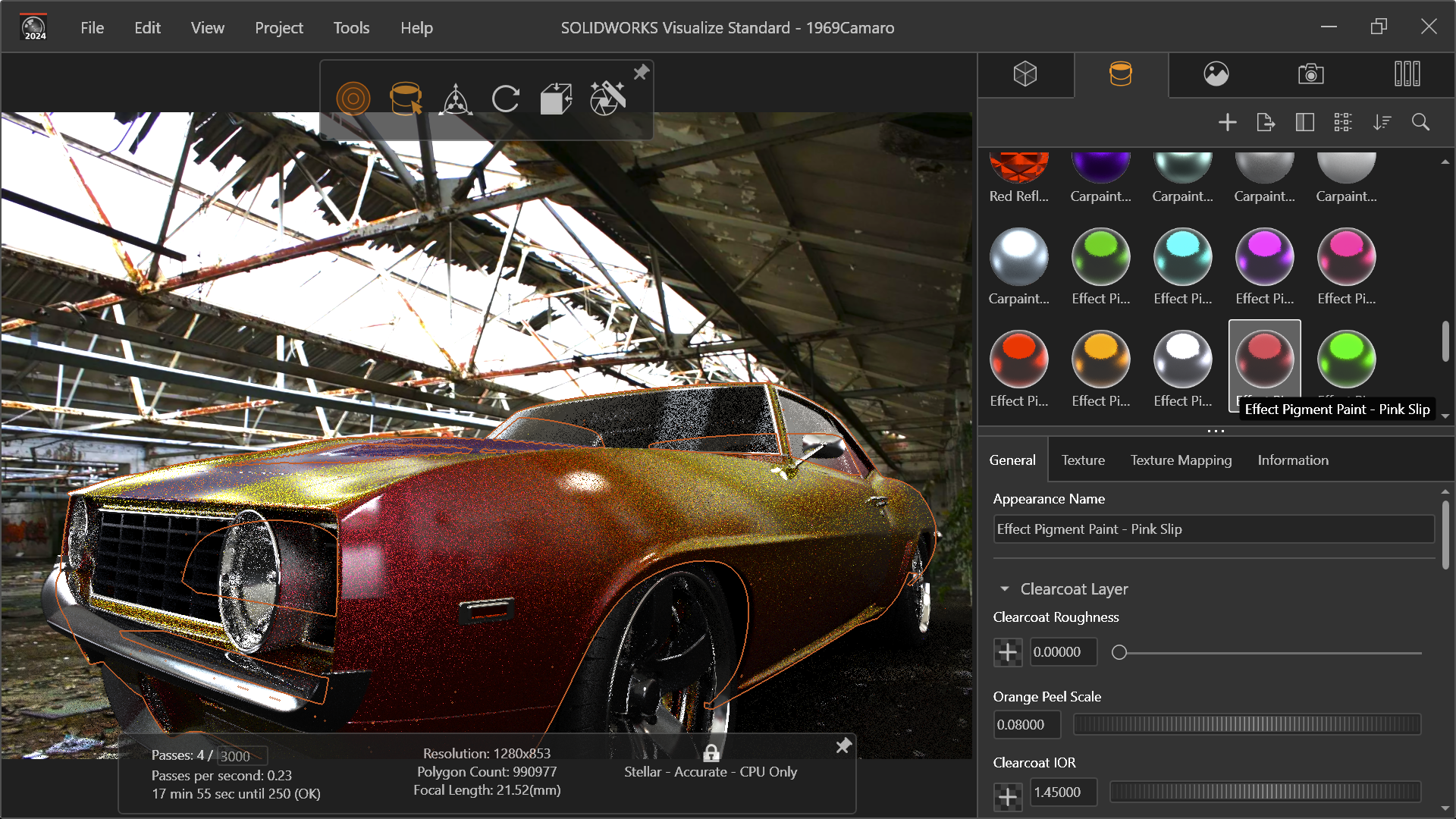
The Effect Pigment Paint, similar to Shifting Flakes Paint has an almost unlimited amount of customisation, including the ability to select the five colours of the flakes, along with the size, coverage & transparency.
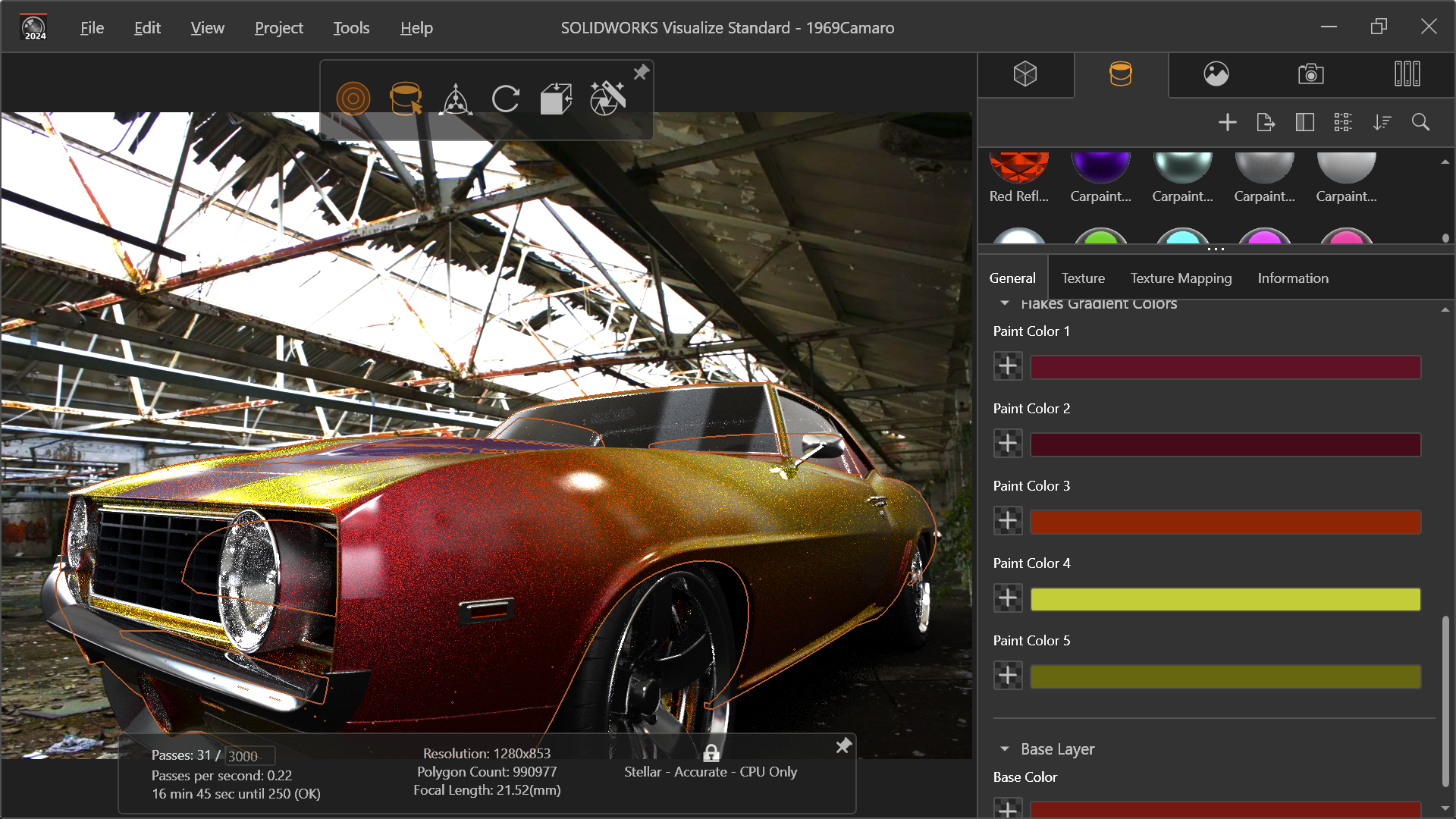
Again this image highlights the impressive ability of NVIDIA Effect Pigment Paint, something which couldn’t be achieved with the standard supplied appearances. Once more highlighting the smooth blending of the colours and the interaction of the light with the different coloured flakes.

Another series of materials which have a more unique set of appearances are NVIDIA Ceramics. There are a vast set of Glazed Tiles with a number of various pattern available. Following the same format as the other NVIDIA materials, Glazed Tile appearance can be adjusted for colour , texture, brightness, & bump height.
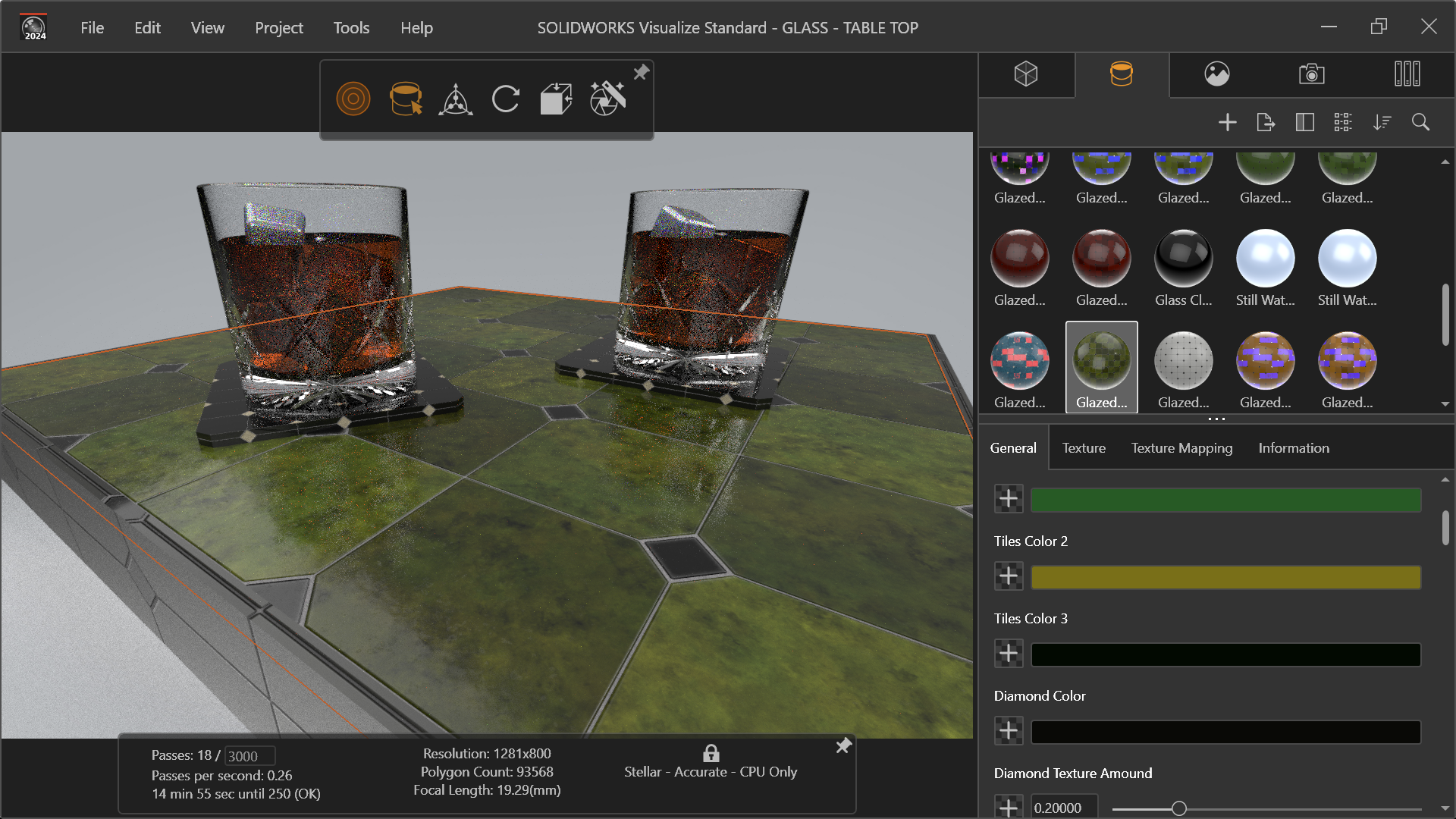
This image certainly displays the realistic bump and surface finish of the Glazed Offset Diamond Tile in Vintage Green & Graphite Varied and Glazed Offset Diamond Tile in Black that showcases the quality of the tiling and grout.
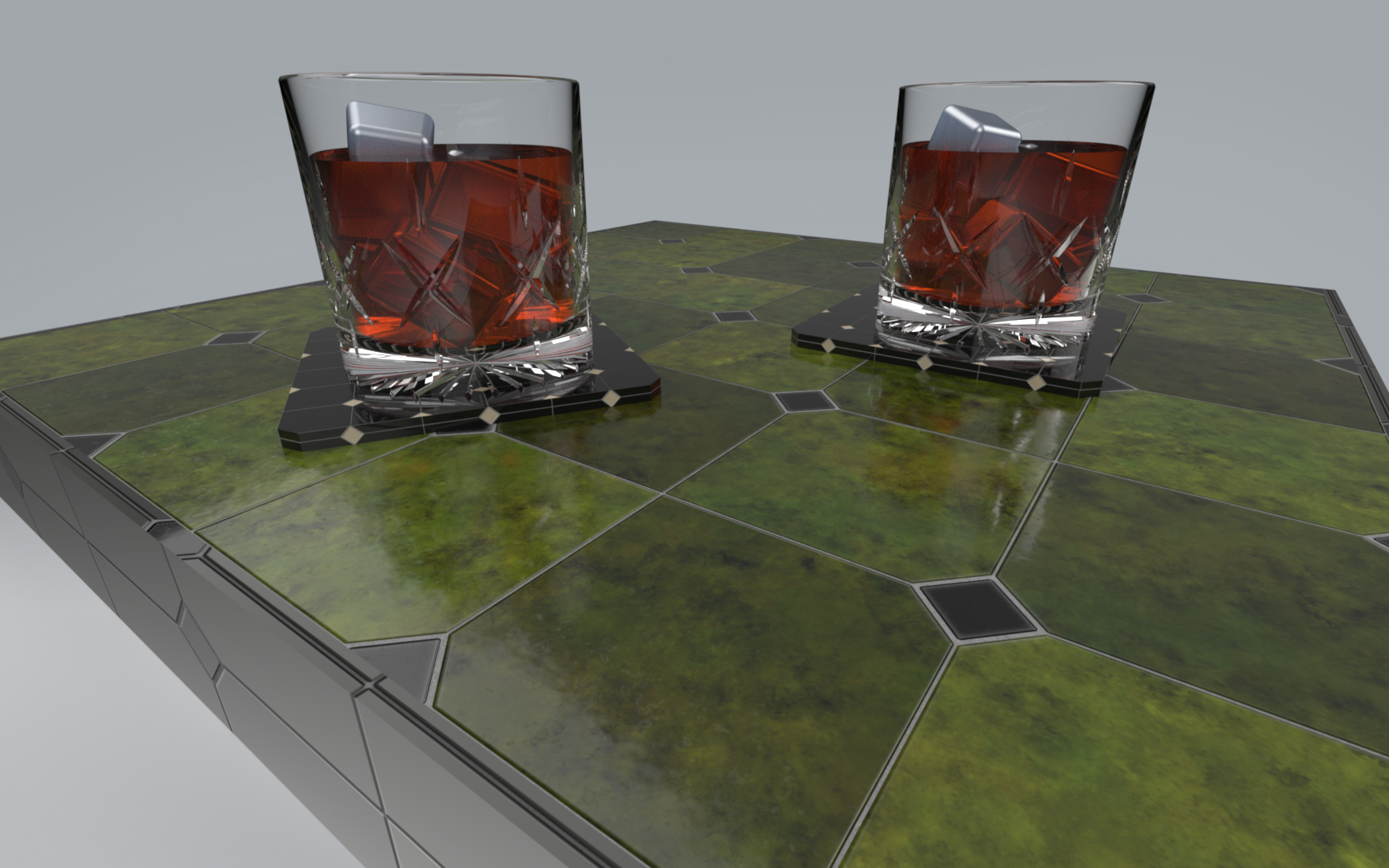
Not all of the NVIDIA appearances look to be fully compatible with SOLIDWORKS Visualize. The following image is an example of that. Although I like the image, with its simple mono-colour style, highlighting the refraction of the table through the glass, it wasn’t suppose to be like that.
The glasses were all meant to be in various states of dust, stains and dirt. That might all be possible within the setting, but I’m yet to have any success achieving that.
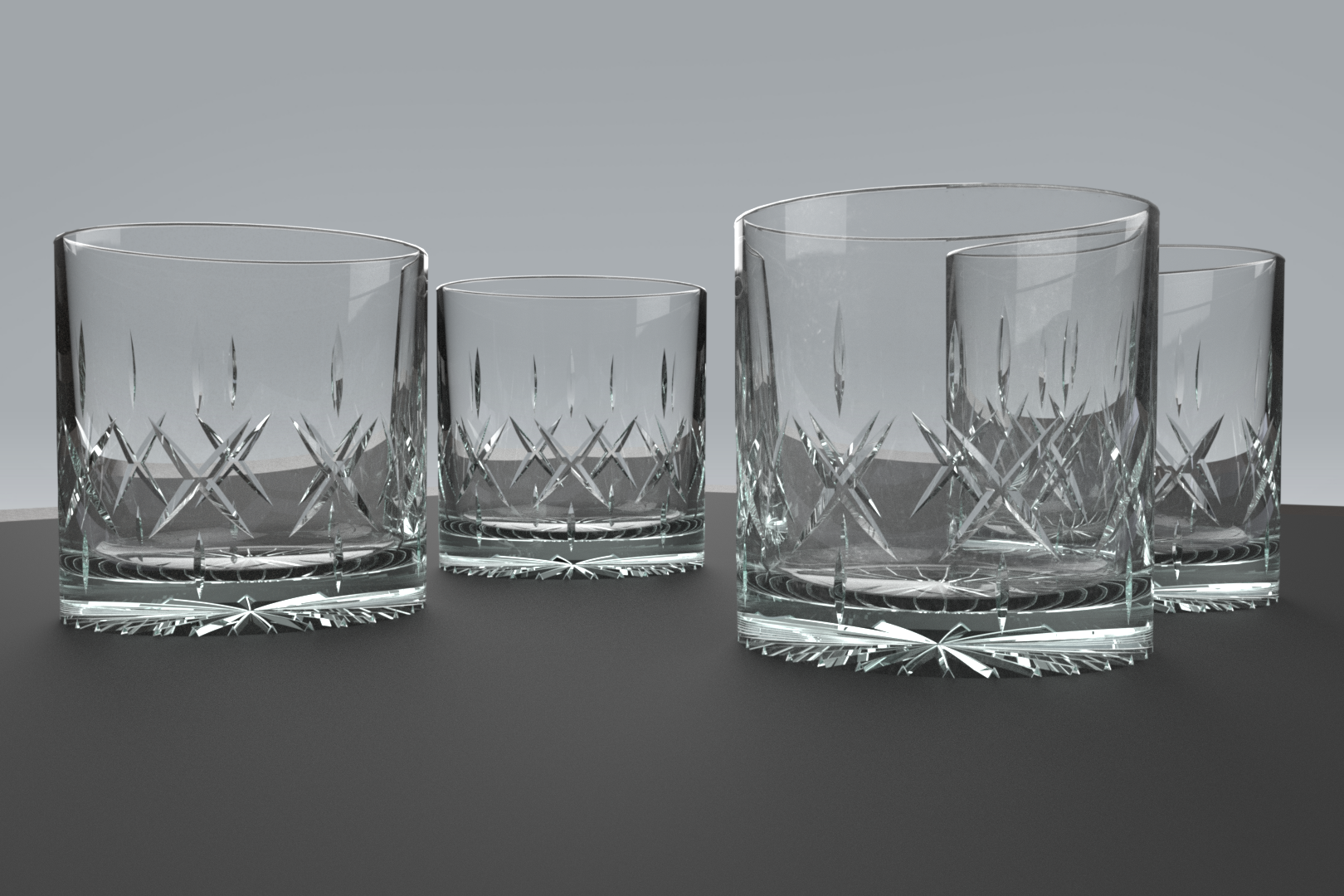
NVIDIA vMaterials adds another arsenal to your material appearances. Whilst they may not be required for every render, over the standard SOLIDWORKS Visualise set, I don’t see why you wouldn’t have them on hand to use, if & when the need arises!
 Michael Lord
Leave a comment